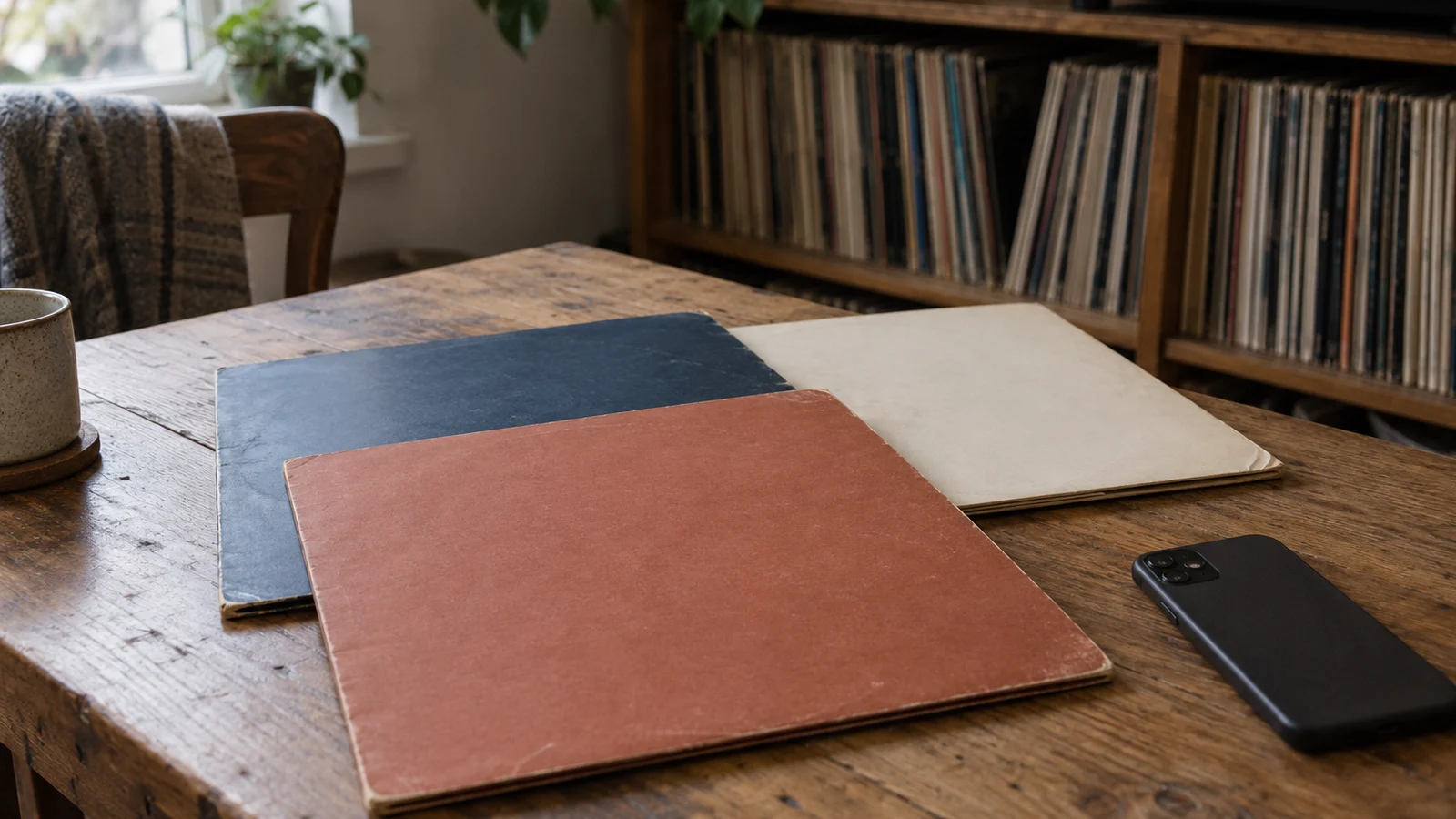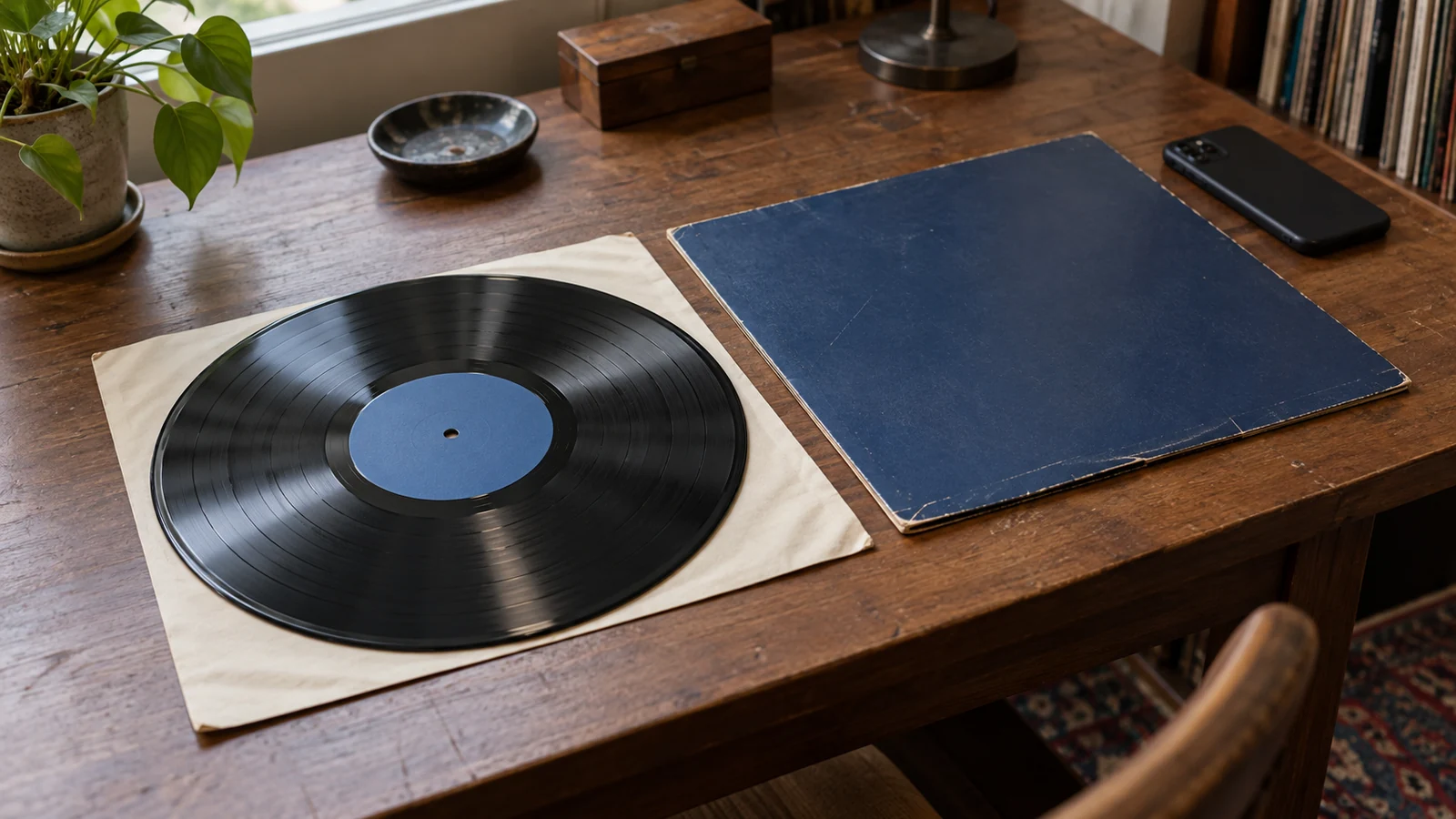
A worn jacket can make a record look like the roughest copy on the shelf. The disc inside might deserve a different assessment. If I put one condition against the whole package, I lose the distinction that will matter when I next choose a copy to play or replace.
My Vinyl has separate Media condition and Sleeve condition fields. This guide follows the Android beta’s Collection screen and Edit dialog, checked against the app’s screen code and save logic. The task is to record your assessment of one physical copy, not ask the app to grade it for you.
I would begin with a single familiar LP rather than a shelf of unchecked purchases. Get both fields right, confirm they saved, and then decide whether the next record needs the same attention.
Start with the copy on the table
Goldmine’s grading guide distinguishes the record’s grade from the cover’s grade. It also recommends inspecting records under strong light and warns that visual grading does not reveal every playback problem.[1] That gives the two app fields separate jobs before you touch the screen.
Put the jacket and its matching disc where you can inspect them without mixing them with another copy. Wash and dry your hands first, and hold the record by the edge and label area. Those handling instructions come from the Library of Congress, whose guidance also says not to touch the playing surface.[2]
Look at the jacket’s seams, spine, and surfaces separately from the disc. A split seam is evidence about the packaging. It does not tell you whether the record has an audible scratch, just as a glossy disc does not establish the condition of the cover.
I would keep any uncertainty explicit in my working notes. If I have inspected the surface but have not listened, I have a visual assessment, not a completed play check. Entering a confident-looking abbreviation should not erase that difference.
Open Edit from Collection
The public My Vinyl release history describes quick Move, Edit, and Delete actions in its collection-browsing updates.[3] The instructions here follow the Android beta specifically. They are not a promise that every iPhone control has the same position or gesture.
Condition editing requires Platinum access in the Android code. Without that access, choosing Edit opens the upgrade screen rather than the condition editor. You can still inspect the physical record and decide what needs documenting before considering an upgrade.
For a direct route to the two fields:
- Open Collection with your collection account signed in, and let your records load.
- If you see a grid, tap the list-view button in the top bar. Find the entry for the copy on your table.
- Tap the three-dot menu beside that record’s row, then choose Edit.
- Check the album title at the top of the dialog before changing anything.
- Tap Media condition, choose your assessment, and wait for that change to finish saving.
- Tap Sleeve condition and choose the packaging assessment separately. Wait again, then tap Done.
Use the row’s menu for this route, not a long press. In the current Android Collection screen, a long press starts selection mode. That is a different interaction, even though selection mode also has actions for selected records.
Give the two fields different answers when needed
Media condition offers grades including Mint, Near Mint, Very Good Plus, Very Good, Good Plus, Good, Fair, and Poor. The app stores the choice you make. It does not inspect the grooves, listen for noise, or decide which grade is justified.
Sleeve condition has its own selection. Do not copy the disc’s answer into that field merely to finish the dialog. For a hypothetical copy, you might judge the disc VG+ and the jacket VG after examining both. Those are two assessments of different objects, not a contradiction to resolve.
Keep the grading reference open if you are uncertain about the labels. Goldmine allows light signs of wear on a VG+ disc but says they should not affect the listening experience. Its Near Mint cover standard excludes creases, ring wear, and seam splits.[1] A jacket with a split seam therefore should not inherit a Near Mint answer from the record inside.
I would apply the same grading reference to a record I love as to one I am considering buying. Personal attachment is not evidence of physical condition, and a lower grade does not mean I need to replace a copy I enjoy.
Use the sleeve-only choices for missing packaging
The Android sleeve picker also includes Generic and No Cover. The media picker excludes both. These choices let you distinguish packaging circumstances without assigning a fictional wear grade to a jacket you do not have.
Use Generic for a copy kept in a generic sleeve rather than its original picture jacket. Use No Cover when the cover is absent. Do not choose Poor merely as a substitute for missing packaging, since that would describe a damaged cover rather than its absence.
An unfilled condition appears as Not set in the Edit dialog. That is not a grade. If you have not examined something, I would leave an unfilled field alone rather than select Mint to make the entry look complete.
NEDCC’s audiovisual inventory guidance recommends recording condition issues that you can observe, without requiring deep technical knowledge for the initial inventory.[4] That is a useful limit for this session too. Record what you can support, and keep a question as a question until you check it.
Wait for each change to save
Each selection starts its own save. The Edit dialog stays open after a successful change so you can work on the other field. Done closes the dialog. It is not a final button that submits both choices together.
During a save, the dialog shows a saving indicator and disables its condition controls. The save logic waits for the service to accept the condition before updating the stored collection copy. Do not assume an offline selection has joined a queue that will finish later.
If a save fails, the dialog can show an error and a Retry button. Check your connection and retry the failed change, then check the displayed result. A successful media update does not prove that a later sleeve update succeeded, because they are separate requests.
The action targets the particular collection copy selected from the row. If you cataloged two copies of the same release, editing one does not mean you assessed the other. Keep the physical item beside the phone until you finish checking that entry.
Check one record before doing a whole shelf
Reopen Edit for the same row and read both values back. Compare them with the disc and jacket still on the table. If either field is wrong, correct that field before putting the record away or opening another entry.
For a broader collection review afterward, the Journal’s guide to My Vinyl’s Library insights covers counts and charts. This task is smaller. It describes the condition of an individual copy, which a collection total cannot tell you.
A worn jacket and a clean-playing disc can belong to the same copy. Take one LP off the shelf today, assess each part separately, and save only the answers you can defend.
Sources
[1] Goldmine: Record grading 101, understanding the Goldmine grading guide
[2] Library of Congress: Care, handling, and storage of audio visual materials
[3] My Vinyl+: Release history, including collection quick-action updates
[4] NEDCC: Fundamentals of AV preservation, chapter 2, section 1, inventory